Set up your BGA development environment with VSCode
VSCode is a lightweight code editor often used by game developers. You can use any IDE, but you'll need to adapt the examples if you choose another one.
Download and install VSCode from https://code.visualstudio.com, then open it.
On your computer, create a folder with the same name as your project. You can put it inside a folder called studio-projects to keep your tutorial projects and future game projects in one place.
In VSCode, select Open folder and open your newly created project folder.
We will now install some VSCode extensions to make development easier.
SFTP (auto-upload files)
Games run on Studio, so we need to upload our project code to our FTP folder to test it. To make this easier, we use an auto-upload extension. This lets us edit files locally and keep them in sync with the FTP folder.
SFTP (by satiromarra) synchronizes your local project with BGA Studio.
-
Press Ctrl+Shift+P on Windows/Linux or Cmd+Shift+P on Mac to open the command palette, then run SFTP: config. The editor will open a JSON configuration file.
This creates ansftp.jsonfile in the.vscodefolder. You can close the tab that opens and edit the JSON file directly. -
Update the JSON as shown below:
{
    "name": "BGA",
    "host": "1.studio.boardgamearena.com",
    "protocol": "sftp",
    "port": 2022,
    "username": "<your SFTP username>",
    "privateKeyPath": "<path to your private key>",
    "remotePath": "/<your project name>/",
    "uploadOnSave": true,
    "ignore": [
        ".*",
        "playwright-report",
        "test-results",
        "tmp",
        "temp",
        "misc",
        "vendor",
        "package-lock.json",
        "yarn.lock",
        "node_modules",
        "* *"
    ],
    "syncOption": {
        "skipCreate": false,
        "delete": true
    }
}
Authentication using an SSH key (recommended)
Find the Studio welcome email containing your SFTP server address and credentials. These credentials are separate from your developer account login. Ignore the SFTP password, as we will set up an SSH key instead.
Check if you already have a key
Open a terminal (on Windows, use PowerShell) and run:
If you see a file such asid_ed25519.pub or id_rsa.pub, you already have a key. Skip the Create a new key step.
Create a new key
Run this command, replacing the email address with your own:
Press Enter to keep the default file location (~/.ssh/id_ed25519).Enter a passphrase. A passphrase is recommended but optional.
This creates two files:
| File | Type | Confidentiality |
| - | - | - |
| ~/.ssh/id_ed25519 | Private key | Never share this file |
| ~/.ssh/id_ed25519.pub | Public key | The file you will upload |
On Windows 10/11, ssh-keygen works in PowerShell. The files are saved in C:\Users\<you>\.ssh\.
Copy your public key
Upload your public key to BGA Studio
Go to the Studio Control Panel.
Find the Upload your SSH public key panel, paste the key into the text field, and click Upload.
Authentication using a password (not recommended)
Find the Studio welcome email containing your SFTP server address and credentials. These credentials are separate from your developer account login.
Replace the privateKeyPath line with:
First sync (only needed once)
Press Ctrl+Shift+P on Windows/Linux or Cmd+Shift+P on Mac to open the command palette, then run SFTP: Download Project.
This will download all the files locally.
Download the helpers
BGA maintains _ide_helper.php and bga-framework.d.ts as read-only files in your Studio FTP folder. Download them regularly by right-clicking _ide_helper.php and selecting Download file, then doing the same for bga-framework.d.ts.
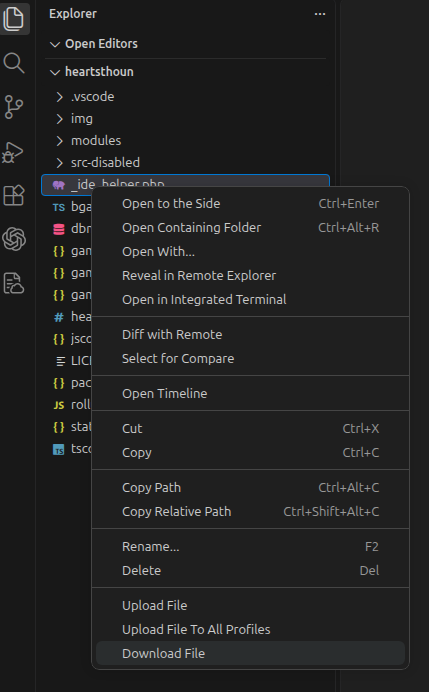
Missing framework function
If framework declarations are missing in PHP or JS/TypeScript later in development (for example, a framework function is underlined in red), your helper files are probably out of date. Download them again as explained in this chapter.
Daily use
You don't have to do anything else! Each time you save a file in VSCode, the extension uploads it to the SFTP server.
To force an upload to the server, right-click a file or folder and select Upload file or Upload folder.
PHP
PHP Intelephense provides PHP autocomplete, navigation, error diagnostics, and formatting. It can read the _ide_helper.php file, which VSCode cannot do on its own.
Install PHP
Download and install PHP 8.4.
Run php -v in a terminal to check your installation.
Configure VSCode
Open Preferences: Open User Settings (JSON) from the command palette and merge these settings into your existing configuration:
{
    "php.validate.executablePath": "/usr/bin/php8.4",
    "php.suggest.basic": false,
    "intelephense.environment.phpVersion": "8.4.0",
    "intelephense.diagnostics.enable": true,
    "[php]": {
        "editor.defaultFormatter": "bmewburn.vscode-intelephense-client"
    }
}
Replace /usr/bin/php8.4 with the PHP executable's location on your computer (for example, C:/php/php.exe on Windows). This path is used by VSCode's built-in PHP syntax validator, which runs php -l. Intelephense performs its own analysis without running PHP. Its phpVersion setting specifies the PHP version your code targets.
Enable BGA framework completion
Open your whole game project folder in VSCode and download _ide_helper.php from your Studio project into its root. Intelephense indexes PHP files in the workspace automatically, including this helper, to discover BGA classes, methods, and parameters. Do not exclude it with intelephense.files.exclude, and do not require or execute it in your game.
JavaScript / TypeScript
VSCode includes JavaScript and TypeScript IntelliSense by default: no additional extension is needed. Its TypeScript language service analyzes your code to provide autocomplete, parameter hints, hover documentation, navigation to definitions, and error diagnostics.
How is the editor knowing BGA framework
The bga-framework.d.ts file describes the BGA client framework's classes, methods, and types. Keep it downloaded and included in your project's tsconfig.json (TypeScript) or jsconfig.json (JavaScript), so IntelliSense can use these definitions. If framework methods are missing, download the latest copy from your Studio project.
TypeScript supplies explicit type information. JavaScript also benefits from IntelliSense through inferred types and JSDoc annotations.
Run on Save (code generators)
Run on Save runs code generators when you save TypeScript or SCSS files. If you don't plan to use TypeScript or SCSS, you can skip this one.
Run on Save settings
Add the following to settings.json:
    "emeraldwalk.runonsave": {
        "commands": [
            {
                "match": ".*\\.(ts|json)$",
                "isAsync": true,
                "cmd": "npm run build:ts"
            },
            {
                "match": ".*\\.scss$",
                "isAsync": true,
                "cmd": "npm run build:scss"
            }
        ]
    }
The configured commands are the ones from the default package.json file.
Continue with Hearts tutorial or Reversi tutorial